




Objective
The goal is to enable the build and validation process for Progress OpenEdge applications within a controlled containerised environment in GitHub.
Only use in private repositories.
Because this method requires uploading the OpenEdge installation into the repository, using a private repo is strongly recommended. This ensures that proprietary installation packages are not exposed publicly. The response.ini file is handled securely by storing it in GitHub Secrets.
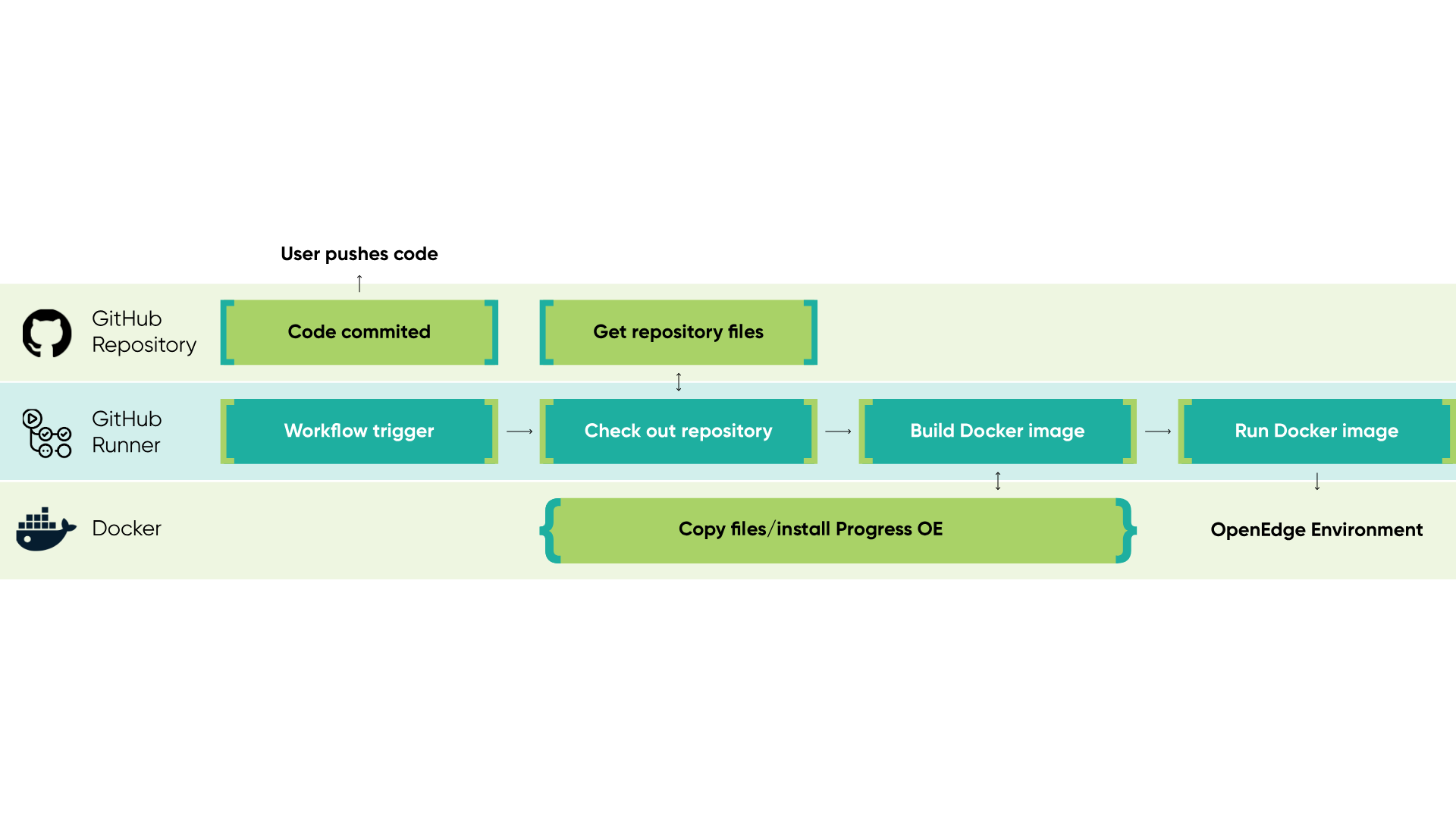
Diagram
Inputs
- User actions (push, pull, merge request,..) on repository.
- Timed, recurring events.
- Manual dispatch.
- Learn more at GitHub Docs
Outputs
- OpenEdge environment in GitHub Actions.
Description
As in the diagram above, we will use 3 mediums to transfer data from Repository → Actions Runner → Docker container.
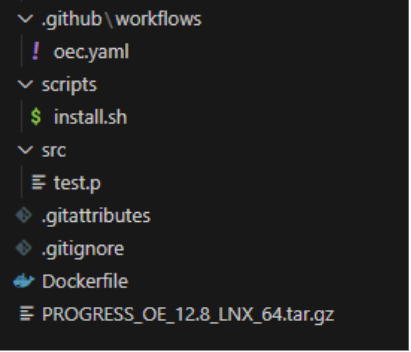
We create a GitHub repository with these files:
oec.yaml
File that contains the GitHub Actions workflow. For this use case, the workflow is kept simple. It builds and starts the Docker container with Progress OpenEdge tools.
This workflow has two triggers: on push to the main branch, and on manual_dispatch which can be triggered from the GitHub page.
# Trigger settings — define when this workflow runs:

on:

  workflow_dispatch:        # Allows manual triggering of the workflow from GitHub UI

  push:                     # Triggers the workflow automatically on code pushed

    branches:               # Specify which branches this applies to for pushes

      - main                # Only run when code is pushed to the `main` branch


jobs:

  build:

    runs-on: ubuntu-latest  # Specifies the virtual environment; here, a Ubuntu runner


    steps:

      - name: Check out repository

        uses: actions/checkout@v4              # Uses the official checkout action, version 4 to get the code from repository

        with:

          lfs: true                            # If the repo uses Git LFS (Large File Storage), this ensures LFS files are pulled


      - name: Add response.ini                 # Next step to create or populate a file called response.ini

        run:

          echo "${{ secrets.RESPONSE_INI }}" | base64 --decode > response.ini


      - name: Build the Docker image           # Step to build a Docker image

        run: docker build -t oe-ci .


      - name: Run a container from the image   # Step to run a container using the built image

        run: docker run oe-ci
install.sh
In the scripts directory, we have an install.sh script that runs a silent installation and outputs the log file.
This script is optional but prevents the docker build command from terminating without showing errors from the Progress OpenEdge installation process.
/install/openedge/proinst -b /install/openedge/response.ini -l /install/install_oe.log -n

cat /install/install_oe.log
Dockerfile
Another crucial file is the Dockerfile, used to install and run Progress OpenEdge inside the GitHub Actions runner. Since GitHub restricts runner modification (available only via the Actions Marketplace), we rely on a Docker container that we can freely modify.
FROM ubuntu:24.04


# We copy openjdk installation and set env variables

ENV JAVA_HOME=/opt/java/openjdk

COPY --from=eclipse-temurin:17.0.15_6-jdk $JAVA_HOME $JAVA_HOME

ENV PATH="${JAVA_HOME}/bin:${PATH}"


# We Add Progress OE installation and the script and then we write to a file

# response.ini content that is kept in a secret.

ADD PROGRESS_OE_12.8_LNX_64.tar.gz /install/openedge/

ADD scripts/install.sh /install/install.sh

COPY response.ini /install/openedge/response.ini


ENV TERM=linux


# Provide permissions for install script.

RUN chmod +x /install/install.sh

RUN /install/install.sh


CMD ["/bin/bash"]
Then we have installation files that we will use to setup Progress OpenEdge environment inside GitHub Runner.
PROGRESS_OE.tar.gz
We can use couple of ways to add Progress OpenEdge tools into our GitHub actions environment.
- One way is to build the image and use a registry to later pull it into GitHub Actions runner ("Docker Hub").
- Another way is to use Git LFS (Large File Storage) to upload the Progress OpenEdge installation into a private GitHub repository and check it out alongside the code. Read more on how to add LFS to GitHub
response.ini
This file will be used to silently install Progress OpenEdge inside the Docker container.
- Encode it with base64.
- Add the file inside the GitHub repository as a secret.
- Go to your repository → Settings → Secrets and variables → Actions → New repository secret.
- Remember to decode it with base64 --decode when using it inside GitHub Actions.
So after setting up everything inside the repository, what can we expect?
Challenges
- No native Progress OpenEdge tools are inside the GitHub Actions, so we build everything from the ground up.
- Tailoring the environment to run Progress OpenEdge.
- Securing your license while using Progress OpenEdge tools inside GitHub-hosted runners.
Results
- Infrastructure to continue building on:
- Using PCT to build projects.
- Using ABLUnit to run tests.
- Development tools inside GitHub Action Runner:
- Pro, mpro, bpro .
What are the lessons learned?
In the initial approach, we manually uploaded the Progress OpenEdge installer (PROGRESS_OE.tar.gz) and response file (response.ini) into the repository, then used a custom Dockerfile and shell script to perform a silent installation inside the GitHub Actions runner. While this works, it has a few major drawbacks:
- Heavy image builds. Each CI run rebuilds the full installation, which increases build times significantly (In this example the built time was ~1 minute only for the OE install).
- Large files inside repo. Embedding installer files directly into the repo (even via Git LFS) slows down git significantly.
A better approach is to create a prebuilt image stored in a private registry (GHCR, Docker Hub, or others), with Progress OpenEdge already installed. This way, the image can be pulled and used to build and run tests without repeating the installation in every CI run.
Why does it matter?
This blog post walks through setting up a working Progress OpenEdge environment inside GitHub Actions using Docker and silent installation. While it does not yet cover full CI/CD pipelines, it gives you the foundation needed to run builds, tests, and automation for OpenEdge projects in a modern GitHub workflow.